
The right iptv buffering fix is usually simpler than you think, and you don’t need to be a tech expert to pull it off. Most buffering comes down to a handful of fixable problems: your internet connection, your router’s position, your device settings, or the IPTV service itself. Sort those out and you’ll be watching in crisp, uninterrupted HD or 4K. This guide walks you through 10 proven solutions, starting with the quickest wins and working up to the deeper fixes.
Why Does IPTV Buffer? The Root Causes Explained
IPTV buffers when your stream can’t receive data fast enough to play without interruption. If you want to understand what buffering actually is at a technical level, that link breaks it down clearly. Our complete guide to IPTV streaming quality goes further and shows you how to push past it.
Bandwidth is the most common culprit. A 4K stream needs roughly 25 Mbps on its own; HD needs at least 5–8 Mbps. Check the FCC’s recommended speeds for streaming video if you’re unsure where your connection stands. Beyond raw speed, your ISP may throttle streaming traffic during evenings, a weak Wi-Fi signal drops packets even on a fast plan, and overloaded provider servers slow delivery at the source. Older devices or outdated app versions can also struggle to decode HD streams fast enough, causing freezes that have nothing to do with your internet.
1. Check Your Internet Speed and Stability First
Most iptv buffering fixes start here. Your connection needs enough consistent bandwidth to keep up with the stream quality you’re watching. See the full breakdown in our article on the minimum internet speed required for IPTV, but as a quick rule: SD needs around 5 Mbps, HD needs 10 Mbps, FHD needs 25 Mbps, and 4K needs 50 Mbps or more.
Run a quick speed test at fast.com or speedtest.net and check three numbers: download speed, ping (under 40ms is good), and jitter (lower is better). A fast download doesn’t always mean a stable stream — high jitter or packet loss causes buffering even on a 200 Mbps plan. If your speeds look inconsistent across multiple tests, call your ISP. Fluctuating results usually point to a line problem, not just congestion.
2. Switch from Wi-Fi to a Wired Ethernet Connection
A wired Ethernet connection is the single fastest fix for IPTV buffering. Wi-Fi drops packets, fights with neighboring networks, and loses signal through walls. Ethernet does none of that, and if you’re serious about watching 4K IPTV without buffering, a cable is non-negotiable.
Before you rewire anything, run a speed test on the device you actually stream on. You might find the problem is simply distance from the router. Can’t run a cable? A powerline adapter plugs into two wall outlets and delivers wired-quality performance through your home’s existing electrical wiring. MoCA adapters do the same over coax. Both cost under $50 and make a real difference.
For Firestick users specifically, a $10 Ethernet adapter from Amazon plugs into the micro-USB port and connects straight to your router. Android TV boxes and Nvidia Shield have a built-in Ethernet port — just plug in and go. If wired truly isn’t possible, switch your router to the 5 GHz band, move it closer to your TV, and consider upgrading to Wi-Fi 6 if your router is more than four years old. These steps won’t match a cable, but they’ll get you noticeably closer. For persistent Wi-Fi dead zones, upgrading to a mesh Wi-Fi system is worth looking into.
3. Reboot Your Router and Reduce Background Network Usage
A simple router reboot clears its memory and resets connection tables that quietly fill up over days of use. Aim to reboot once a week — power it off, wait 30 seconds, power it back on. That alone fixes buffering for a lot of people.
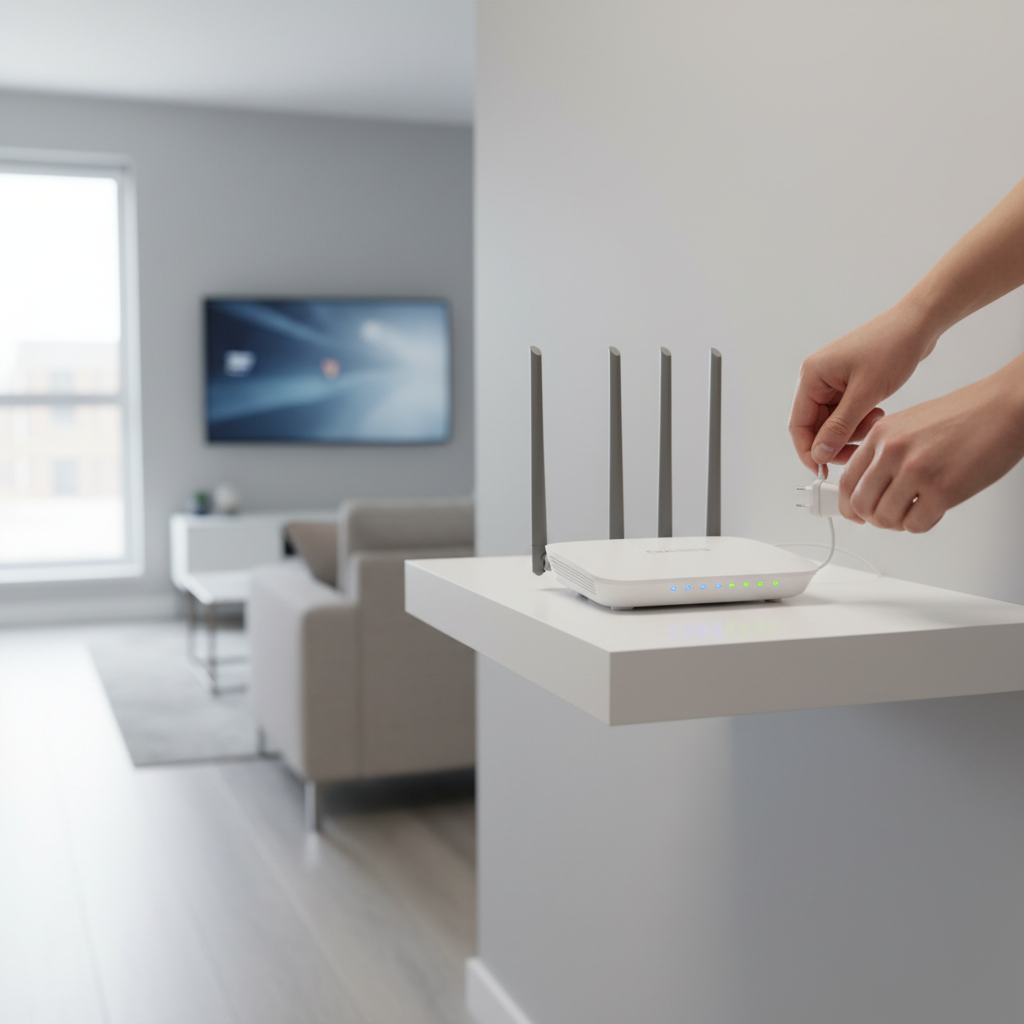
While you’re at it, check what else is eating your bandwidth. Cloud backups, system updates, and someone downloading a game can quietly strangle your speeds. Pause those before you start watching. Most routers also have a QoS (Quality of Service) setting — usually under “Advanced” — that lets you push your streaming device to the front of the line. Prioritize your TV or Firestick there and you’ll feel the difference on a busy home network.
4. Clear Cache and App Data on Your Streaming Device
A bloated cache is one of the most overlooked causes of IPTV buffering, and it’s one of the easiest fixes. Over time, your app stores temporary files that pile up and slow everything down. Clear it every two to four weeks for consistently smooth playback.
Firestick / Fire TV
Go to Settings → Applications → Manage Installed Applications → select your IPTV app → Clear Cache. Do this for both the player and any browser you use.
Android TV / Nvidia Shield
Settings → Apps → See All Apps → pick your player → Clear Cache. On Nvidia Shield, also clear the data for TiviMate if freezes persist after the wipe.
Inside the IPTV App
IPTV Smarters has its own cache under Settings → Clear Cache. If you’re still seeing freezes after clearing, a full uninstall and reinstall usually solves what a cache wipe misses — a tip that comes up constantly in iptv smarters buffering reddit threads for good reason. Also check your Firestick’s free storage: under 500MB and you’ll see buffering no matter how fast your connection is.
5. Switch to a Provider with Real Anti-Buffering Infrastructure
Most buffering isn’t your router’s fault, it’s the server on the other end. Cheap or free IPTV services cram too many users onto shared servers, and when demand spikes, everyone freezes. No device tweak fixes that.
Anti-freeze technology works at the server level by smoothing out data delivery before gaps reach your screen. VoxiCast runs dedicated sports servers specifically for high-traffic moments like PPV fights and live Premier League matches, when overloaded servers cause the most pain. With 99.9% uptime and over 40,000 live channels plus 54,000+ VOD titles, that infrastructure is doing the heavy lifting your home network can’t.
Matching stream quality to your connection matters too. VoxiCast offers SD, HD, FHD, and 4K tiers, so if your line can’t sustain 4K right now, dropping one tier eliminates buffering instantly. The 24-hour free trial lets you test all of this on your own connection before spending a cent. For the app side of the equation, check out the best IPTV player apps for smoother playback.
6. Switch Your Streaming Protocol: HLS vs MPEG-TS
Your IPTV app is probably using one of two protocols to pull in your stream: HLS or MPEG-TS. Picking the wrong one for your connection is a surprisingly common cause of buffering.
MPEG-TS sends a steady, continuous stream of data. On a wired connection with consistent speed, it delivers lower latency and sharper performance overall. HLS breaks the stream into small chunks and adjusts quality on the fly, making it far more forgiving on shaky Wi-Fi.
| Protocol | Best For | Trade-off |
|---|---|---|
| MPEG-TS | Wired or rock-solid Wi-Fi | Struggles on unstable connections |
| HLS | Unstable or congested Wi-Fi | Slightly higher latency |
To switch in TiviMate, go to Settings → Player → select your preferred stream format. In IPTV Smarters Pro, tap the stream, hit the settings icon, and toggle between HLS and TS. In GSE Smart IPTV, open Settings → Player Engine and choose accordingly. VoxiCast delivers streams compatible with both protocols through your M3U link and Xtream Codes, so you can test either without touching your subscription.
7. Optimize Your IPTV Player Settings for Better Performance
Your IPTV player has more control over buffering than most people realize. A few setting changes inside TiviMate or IPTV Smarters can make a bigger difference than restarting your router.
Buffer Size: Give Your Player More Room to Work
Both TiviMate and IPTV Smarters let you manually set the buffer size. In TiviMate, go to Settings > Player > Buffer Size and push it up to 10–15 seconds. That gives the app a larger cushion to absorb small network hiccups before they show on screen. In IPTV Smarters, look under Stream Settings for the buffer option. If you’ve searched “iptv smarters buffering reddit” and seen conflicting advice, start here before changing anything else.
Hardware Decoding vs. Software Decoding
Hardware decoding uses your device’s built-in chip to process video, it’s faster and uses less power. Software decoding makes the app do all the work, which causes stuttering on older Firesticks. Turn hardware decoding on for Firestick and Nvidia Shield. If you see a green-tinted screen or visual artifacts, switch it off, that’s the sign your device doesn’t support it for that stream format.
Choosing the Right Video Decoder
TiviMate gives you three decoder options: ExoPlayer, LibVLC, and FFmpeg. ExoPlayer is the right default for most Firestick and Android TV users, it’s built for those platforms and handles HD and 4K streams cleanly. LibVLC handles a wider range of stream formats and is worth trying if certain channels stutter on ExoPlayer. FFmpeg is a fallback for problem streams; it works but uses more processing power, so don’t make it your default.
| Decoder | Best For | When to Avoid |
|---|---|---|
| ExoPlayer | Firestick, Android TV, everyday HD/4K | Unusual stream formats that won’t load |
| LibVLC | Channels that stutter or fail on ExoPlayer | Older low-RAM devices (can be heavy) |
| FFmpeg | Last-resort fix for stubborn streams | Default use, too CPU-intensive |
Turn Off EPG Auto-Refresh During Playback
The on-screen program guide auto-refreshes in the background, and on a Firestick that refresh pulls bandwidth and CPU at the same time your stream needs both. In TiviMate, set EPG to refresh overnight or manually, never during peak viewing hours. This one tweak noticeably improves performance on mid-range devices.
How VoxiCast’s Xtream Codes Delivery Helps Here
VoxiCast sends your Xtream Codes credentials by email within about two minutes of signing up. Xtream Codes connects directly inside TiviMate and IPTV Smarters, no manual playlist importing, no broken links after updates. The player always pulls the freshest stream URLs automatically, which removes a whole category of buffering caused by stale M3U playlists.
8. Avoid Peak Streaming Hours or Use a Provider Built for High Traffic
Peak hours hit hardest between 7–10 PM on weeknights and during major live events like NFL Sundays or a big UFC card. Shared IPTV servers get hammered by thousands of simultaneous viewers, and quality drops fast. This is exactly where dedicated sports servers earn their keep, VoxiCast routes Premier League, NBA, PPV fights, and UFC onto separate infrastructure built for that load, so you’re not competing with everyone else when the main event starts.
For non-live content, shift your viewing earlier in the day. With tens of thousands of VOD titles available, there’s no shortage of movies and series to watch at 2 PM when servers are quiet. If you find yourself buffering constantly on live channels at night, that schedule shift alone can make a noticeable difference while you work through the rest of this list.
9. Update Your IPTV App and Streaming Device Firmware
Outdated software is one of the sneakiest buffering causes because nothing looks obviously wrong. Old app versions carry codec mismatches and memory leaks that quietly choke your stream. Check the official device troubleshooting steps for your specific hardware if you’re unsure where to start.
On a Firestick, go to Settings → My Fire TV → About → Check for Updates. Android TV and Nvidia Shield handle updates through the Play Store. Samsung and LG Smart TVs have a firmware update option in Support or General settings, worth checking every few months. For TiviMate and IPTV Smarters, update them the same way you installed them.
10. Use a VPN If Your ISP Is Throttling Your Stream
A VPN fixes buffering only when your ISP is the problem. The quickest way to check: run a speed test normally, then run one with a VPN on. If your speeds jump noticeably with the VPN active, your ISP is throttling streaming traffic. Another clear sign is buffering that only hits during evenings or on specific content types, that pattern points straight to throttling, not a weak connection.
If throttling is confirmed, pick WireGuard or OpenVPN UDP as your protocol and connect to the nearest server. Both keep added latency low enough that you won’t notice it. Avoid distant servers, the extra hops create new lag. VoxiCast works fine either way as a paid subscription service. Just know that if your buffering is constant regardless of time of day, a VPN won’t solve it, that’s a bandwidth or device issue covered earlier in this guide.
Frequently Asked Questions
How can I get my IPTV to stop buffering?
Start with the three most likely causes in order: your internet connection, your device settings, and your provider’s server quality. Run a speed test and switch to Ethernet if you’re on Wi-Fi. Then clear your app cache and restart the stream. If buffering persists after those steps, the problem is on the provider’s end, and no device tweak fixes that. A provider with antifreeze technology and 99.9% uptime like VoxiCast handles the server side properly. The 24-hour free trial lets you see the difference on your own connection.
Is there an IPTV service that doesn’t buffer?
No service can promise zero buffering under every possible network condition. What separates good providers from bad ones is infrastructure. VoxiCast runs dedicated servers with antifreeze technology and maintains 99.9% uptime, which puts it as close to buffer-free as IPTV gets. Try it free for 24 hours and test stream stability on your actual connection before spending a dollar.
Why is IPTV so glitchy and freezing?
Most freezing traces back to underpowered provider servers, not your setup. Budget IPTV providers cram too many users onto cheap infrastructure, and the result is constant stuttering regardless of how fast your internet is. Other contributors include insufficient bandwidth, outdated apps, and ISP throttling. The fix that matters most is choosing a provider with dedicated server infrastructure and antifreeze technology, that solves the root cause that app settings simply cannot.
How do I fix buffering on IPTV on a Firestick?
Work through these steps in order. Clear the cache and data for your IPTV app, then force-stop and relaunch it. Connect your Firestick via an Ethernet adapter instead of Wi-Fi if you can. Inside the player, enable hardware decoding and increase the buffer size to 10–15 seconds. Drop the stream quality one tier if your network is congested. Make sure both the Firestick firmware and your IPTV app are fully updated. VoxiCast delivers M3U links and Xtream Codes that work natively on Firestick with TiviMate and IPTV Smarters, so setup is straightforward once you’re ready to test.
Does a VPN help with IPTV buffering?
A VPN helps in one specific situation: when your ISP is throttling your streaming traffic. Encrypting your connection can bypass the throttle and restore your full speeds. But if your buffering comes from slow internet, weak Wi-Fi, or an overloaded provider’s servers, a VPN adds latency and makes things worse. VoxiCast works fine with a VPN but doesn’t require one. Server-side buffering is better solved by picking a provider with solid infrastructure than by routing traffic through an extra hop.
What internet speed do I need for 4K IPTV without buffering?
Plan on at least 50 Mbps dedicated to the stream for stable 4K playback. For FHD you need around 25 Mbps, HD around 10 Mbps, and SD around 5 Mbps. Raw speed matters, but stability and low jitter matter just as much, a 100 Mbps connection that spikes and drops will still buffer. VoxiCast offers SD, HD, FHD, and 4K stream tiers, so you can match the quality level to what your connection actually delivers consistently.
Why does my IPTV buffer only during sports or live events?
Live sports hit providers with massive simultaneous demand spikes. Providers without dedicated sports infrastructure simply can’t handle the load, so streams freeze right at kickoff or the opening bell. That’s a provider problem, not yours. VoxiCast runs dedicated sports servers built for high-demand events, PPV fights, Premier League, NFL, NBA, and UFC, with zero blackouts. If your current service falls apart every time a big game starts, the server setup is the issue.
Final Thoughts
Most buffering problems have a fix, and now you have ten of them. Work through the list from the top, check your internet speed, switch to a wired connection, clear your app cache, and adjust your stream quality. Those four steps alone solve the majority of issues people run into.
If you’ve tried every iptv buffering fix on this list and nothing sticks, the problem is likely your provider, not your setup. A low-quality service will buffer no matter how good your router is. VoxiCast runs dedicated servers with antifreeze technology built in, which is why the picture stays solid when cheaper services fall apart. Check out affordable IPTV subscription plans worth considering, or try a reliable IPTV service free for 24 hours and see the difference yourself.