
What IPTV Smart Player Is and What It Actually Does
IPTV Smart Player is a dedicated media player app built specifically for streaming IPTV content. It lets you load a playlist — typically an M3U file or Xtream Codes login from your IPTV provider — and watch live TV channels, on-demand video, and catch-up content through a single, organized interface.
The app is available on Android (Google Play Store) and supports M3U playlists, Xtream Codes API, and EPG data. EPG stands for Electronic Program Guide — it’s the on-screen TV schedule that shows what’s playing now and what’s coming up next, similar to a digital version of a printed TV guide.
Table of Contents
On pricing: IPTV Smart Player follows a freemium model. The free tier gives you basic playback. A paid upgrade unlocks features like multi-screen support, advanced EPG views, and fewer restrictions on playlist size. The paid version is a one-time or subscription purchase depending on the platform — check the current listing in your app store for the exact figure, as pricing updates periodically.
The app itself does not include any channels. It’s a player, not a service. To actually watch anything, you need a separate IPTV subscription that provides the stream links.
Full Feature Breakdown: What IPTV Smart Player Supports
IPTV Smart Player packs a lot into a free app. Here is exactly what it handles, so you know what you are working with before you connect a service.
Streaming Format Support
The player accepts M3U and M3U8 playlist files, which are the standard formats used by virtually every IPTV provider. It also supports Xtream Codes API connections, meaning you can log in with a username, password, and server URL instead of managing a playlist file manually. Both methods pull in live channels, VOD libraries, and series content from the same source.
For video formats, IPTV Smart Player handles H.264 and H.265 (HEVC) encoded streams. H.265 is the codec most providers use for 4K content because it delivers better picture quality at lower bitrates. The player also supports HLS and MPEG-TS transport streams, which cover the majority of what IPTV services actually deliver.
EPG and XMLTV Integration
EPG stands for Electronic Program Guide — it is the on-screen TV schedule that shows you what is playing now and what is coming up next. If you have ever used a cable guide, you already know what this looks like. XMLTV is the data format that feeds that guide, and IPTV Smart Player accepts XMLTV sources directly.
You can enter an XMLTV URL from your provider, and the app maps the schedule data to your channel list automatically. When it works well, you get a full 7-day program grid. When a provider’s EPG data is patchy, you will see gaps — that is a provider issue, not a player issue.
Playback Engine and Performance
IPTV Smart Player uses a built-in media engine with an option to switch to an external player like MX Player or VLC on Android. The external player option matters if you run into a stream that the native engine struggles with — some older or non-standard codecs play better through VLC.
Buffering behavior depends heavily on your connection. CNET’s network guidance puts the minimum for stable HD streaming at 10 Mbps, with 25 Mbps recommended if you want consistent 1080p or 4K without interruptions. The player supports buffer size adjustments in settings, which helps on slower or congested connections. If you are running into constant freezing, the fix is usually network-side, not app-side.
The player also supports hardware acceleration. Turning this on offloads video decoding to your device’s GPU, which reduces CPU load and keeps playback smooth on mid-range hardware.
UI Layout and Navigation Options
The interface gives you a few different layout modes. There is a full-screen TV-style grid view, a sidebar channel list, and a tile-based VOD browser. You can switch between them depending on whether you are browsing live TV or looking through a movie library.
Channel search works across your full playlist, which is useful when a provider loads thousands of channels. You can also create favorites lists and group channels manually if your provider’s default category sorting does not match how you actually watch.
Multi-Screen and Multi-Profile Support
IPTV Smart Player supports multiple playlists stored within the same app. In practice, this means you can set up separate profiles for different services or different household members without logging in and out. Each playlist stores its own EPG source, favorites, and settings independently.
The app does not natively handle simultaneous streams on multiple devices from one account — that is controlled by your IPTV provider’s connection limits, not the player itself. If you need two or three screens running at once, you need a provider that explicitly allows multiple connections. Understanding how the encoding side of that works is covered in more detail in this guide to IPTV encoders and what service you need for streaming.
Device Compatibility at a Glance
IPTV Smart Player runs on Android phones and tablets, Android TV, Fire TV (via sideload), and iOS. The complete setup and device compatibility guide from Nerdbot walks through the install process for each platform if you need step-by-step instructions for your specific device.
The feature set is consistent across platforms with minor UI differences. Fire TV users get a remote-optimized layout. Mobile users get touch controls. The core playback engine and playlist management work the same way regardless of which device you use.
Device Compatibility: Android, Fire TV, iOS, and OS Version Requirements
IPTV Smart Player runs on more devices than most players in its category, but “supports Android” covers a wide range of hardware. Here is exactly what works, what the minimum requirements are, and where you might hit a wall.
Android and Android TV
IPTV Smart Player requires Android 5.0 (Lollipop) or higher on standard Android phones and tablets. For Android TV devices — including Sony Bravia TVs, Philips Android TVs, and Nvidia Shield — you need Android TV OS 5.0 or above. Most Android TVs sold after 2016 clear this bar without issue.
Older budget Android boxes running Android 4.x will not run the app. If you are unsure of your box’s OS version, go to Settings → About → Android Version before downloading.
Amazon Fire TV and Fire Stick
IPTV Smart Player is not listed in the Amazon Appstore, so you need to sideload it via APK. This works on Fire TV Stick (2nd generation and later), Fire TV Stick 4K, Fire TV Cube, and Fire TV Stick Lite. The original 1st-gen Fire TV Stick from 2014 has limited RAM and will struggle with HD streams.
To sideload, enable “Apps from Unknown Sources” in your Fire TV settings, then use the Downloader app to pull the APK directly. The complete setup and device compatibility guide on Nerdbot walks through this process step by step for each Fire TV model, which is worth bookmarking if you have never sideloaded before.
iOS and Apple Devices
IPTV Smart Player requires iOS 11 or higher on iPhone and iPad. That covers every iPhone from the iPhone 6s onward. Apple TV is not officially supported — if you are on Apple TV, you will need a different player like GSE Smart IPTV or Infuse.
One thing to know on iOS: Apple restricts background app refresh and certain network behaviors, which can cause the stream to drop if you lock your screen mid-playback. Keep your screen active or adjust your auto-lock settings to “Never” while watching.
Windows and macOS
There is no native desktop app for IPTV Smart Player. On Windows or Mac, your options are running an Android emulator like BlueStacks, or switching to a different player such as VLC or Kodi with an IPTV plugin. If desktop is your primary screen, factor this into your player choice before committing to a setup.
Smart TVs (Samsung, LG, Hisense)
Samsung Tizen and LG webOS do not support IPTV Smart Player natively. Hisense TVs running Android TV do work, provided they meet the Android 5.0 minimum. For Samsung and LG sets, the practical workaround is casting from an Android phone or plugging in a Fire Stick or Android TV box.
A quick compatibility check before you start saves a lot of frustration. Confirm your OS version, check whether you need to sideload, and verify your device has at least 1GB of RAM for smooth 1080p playback.
How to Set Up IPTV Smart Player: Add M3U, Configure EPG, Adjust Playback
Getting IPTV Smart Player running takes about five minutes if you have your M3U URL ready. Here is the exact process, step by step, so you are watching live TV before you finish your coffee.
Step 1: Add Your M3U Playlist
- Open IPTV Smart Player and tap Add Playlist on the home screen.
- Select M3U URL as the playlist type.
- Paste your M3U link into the URL field. Your IPTV provider sends this link when you sign up — it usually looks like
http://yourprovider.com:port/get.php?username=xxx&password=xxx&type=m3u. - Give the playlist a name (anything works — “Main TV” is fine).
- Tap Load. The app will fetch and sort your channels automatically.
If the playlist fails to load, double-check that you copied the full URL without any trailing spaces. A broken URL is the most common setup mistake by far.
Step 2: Configure Your EPG Source
EPG stands for Electronic Program Guide — it is the on-screen schedule that shows what is playing now and what is coming up next. Without it, you are browsing a numbered channel list with no context.
- Go to Settings and select EPG Settings or Guide Source.
- Enter the XMLTV URL provided by your IPTV service. This is separate from your M3U link — ask your provider if they did not include it in your welcome email.
- Set the EPG refresh interval to every 24 hours. More frequent refreshes waste bandwidth without improving accuracy.
- Tap Save and return to the channel list. Guide data should populate within 30 to 60 seconds.
Some providers bundle EPG data directly inside the M3U file. If your guide fills in automatically after loading the playlist, you do not need to add a separate XMLTV source.
Step 3: Adjust Playback Settings for Stable Streaming
Default playback settings work for most connections, but a few tweaks make a real difference if you are hitting buffering or sync issues.
- Buffer size: Increase the buffer to 5–10 seconds if you see frequent pauses. A larger buffer gives the app more runway to absorb network hiccups.
- Hardware decoding: Turn this on. It offloads video processing to your device’s GPU, which reduces CPU load and prevents overheating on older hardware.
- Stream format: If your provider offers both HLS and MPEG-TS streams, try MPEG-TS first. It tends to perform better on local network connections.
- Reconnect on error: Enable auto-reconnect so the app recovers from brief dropouts without you having to restart the stream manually.
Connection speed matters more than any in-app setting. CNET’s guide to eliminating stream buffering recommends at least 25 Mbps for stable 1080p playback — and if multiple devices are streaming at once, you want more headroom than that. Running a wired Ethernet connection instead of Wi-Fi is the single fastest fix if you are on a congested home network.
<
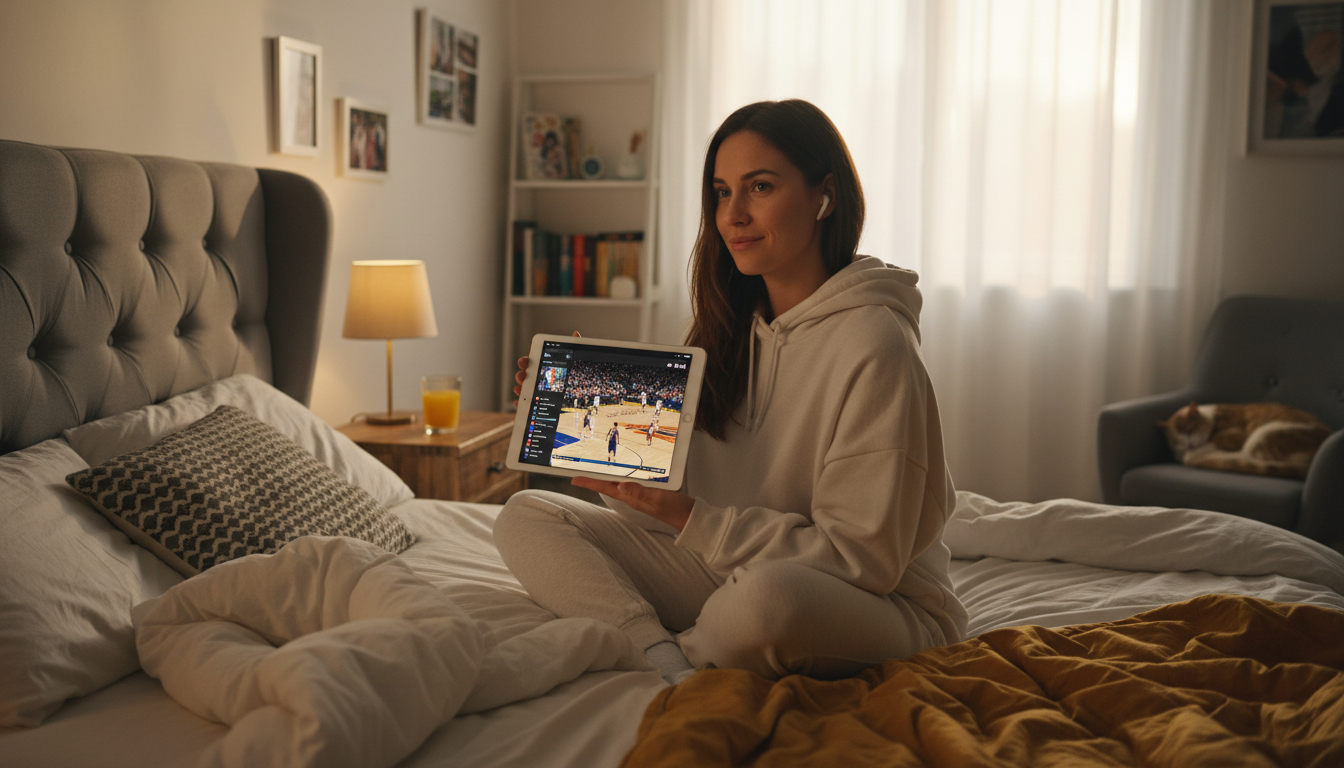
The IPTV player Android experience lets you take live sports anywhere — even a lazy afternoon in bed with an NBA game on your tablet.
>
Step 4: Organize Channels and Groups
Once your playlist loads, IPTV Smart Player groups channels by the categories your provider set — Sports, News, Movies, and so on. You can create custom favorites lists by long-pressing any channel and selecting Add to Favorites. This is worth doing early. A well-organized favorites list means you stop scrolling through hundreds of channels every time you sit down to watch.
For a deeper look at how granular IPTV app configuration can get across different devices, the complete setup and device compatibility guide at Nerdbot is a useful structural reference — many of the same principles apply across IPTV players.
That covers the full setup for IPTV Smart Player. The app handles the playback side well. What determines your actual viewing experience is the quality of the IPTV service behind it.
IPTV Smart Player vs. TiviMate, IPTV Smarters, and GSE Smart IPTV
Four players dominate the IPTV app space right now. They all load M3U playlists and display EPG data, but they are not interchangeable. The differences matter depending on what device you own, how much you want to pay, and how much setup friction you are willing to tolerate.
Here is a direct comparison across the attributes that actually affect your daily experience.
| Feature | IPTV Smart Player | TiviMate | IPTV Smarters Pro | GSE Smart IPTV |
|---|---|---|---|---|
| Primary platforms | Android TV, Fire TV, Smart TV | Android TV, Fire TV | Android, iOS, Fire TV, Smart TV, PC — full device list here | iOS, Android, Apple TV, macOS |
| Cost | Free with optional paid upgrade | Free with paid Premium upgrade (~$4.99) | Free (base); paid tiers vary by provider | Free with in-app purchase for full features |
| EPG support | Yes — XMLTV and built-in guide | Yes — full EPG with catch-up support | Yes — EPG displayed per channel schedule | Yes — XMLTV import supported |
| Multi-playlist support | Yes | Yes (Premium required for multiple) | Yes | Yes |
| UI style | TV-optimized grid layout | Clean TV-first interface, highly rated for remote navigation | Mobile-first design, works on TV but feels ported | Mobile-first, less polished on large screens |
| Best fit | Android TV and Fire TV users who want a free starting point | Users who want the best TV remote experience and will pay for it | Users who switch between phone, tablet, and TV | Apple ecosystem users — iPhone, iPad, Apple TV |
TiviMate has the most polished TV interface of the four. If you are sitting on a couch navigating with a remote, it feels the most like a real cable guide. The catch is that multi-playlist support and catch-up TV are locked behind the paid upgrade.
IPTV Smarters Pro covers the widest range of devices. If you need one app that works on your Fire Stick, your Android phone, and your partner’s iPhone, it is the most practical choice. The UI is not as clean on a 65-inch screen, but the cross-platform flexibility makes up for it.
GSE Smart IPTV fills a gap the others largely ignore: the Apple ecosystem. Android TV players do not run on Apple TV. If your household is built around Apple devices, GSE is the realistic option.
IPTV Smart Player sits in the middle — free, TV-optimized, and straightforward to set up. It does not beat TiviMate on interface polish or IPTV Smarters on device breadth, but it requires no payment to get started and handles the core job well on Android TV and Fire TV hardware.
The player you choose matters less than the service behind it. A great app with an unreliable IPTV feed still buffers constantly. Once you know which player fits your setup, the next step is finding a service that matches it — one with stable streams, a working EPG, and a trial so you can test before committing.
Try VoxiCast with IPTV Smart Player
What to Look for in an IPTV Service That Works With IPTV Smart Player
Not every IPTV service delivers a good experience inside IPTV Smart Player. The player itself is solid, but it can only work with what the service gives it. Four things separate a service that runs well from one that frustrates you within the first week.
M3U Playlist Delivery
IPTV Smart Player loads your channels through an M3U URL or an Xtream Codes login. Any service that does not offer at least one of these two formats will not work with the player at all. When you sign up, ask the provider directly: “Do you provide an M3U URL or Xtream Codes credentials?” If they cannot answer that clearly, move on.
M3U URLs are the more portable option. They let you paste your channel list into any compatible player without being locked into one app. Xtream Codes logins are slightly more convenient but tie your account to that login format. Either works fine with IPTV Smart Player — just confirm which one you are getting before you pay.
EPG Feed Quality
EPG stands for Electronic Program Guide — it is the channel schedule that shows you what is on now and what is coming up next. As Muvi explains in their EPG breakdown, a proper EPG feed is a separate data layer that the player pulls in alongside your channel list. Without it, every channel shows as a blank tile with no schedule information.
Some services include a full 7-day EPG. Others provide 24 hours or nothing at all. For casual viewing, a basic guide is fine. For sports fans or anyone who plans recordings around a schedule, you want at least 3 days of EPG data with accurate start times. Ask the provider what their EPG coverage looks like before committing.
Stream Stability and Speed Requirements
A service can advertise thousands of channels, but if the streams drop every 20 minutes, the channel count means nothing. Stream stability comes down to two things: the provider’s server infrastructure and your own connection speed.
On your end, CNET’s guide to buffer-free streaming references FCC benchmarks that put the minimum at 3 Mbps for standard definition, 5–8 Mbps for 1080p, and 25 Mbps for stable 4K. If you are running multiple streams in the same household, multiply accordingly. A service that claims 4K streams but your plan only supports one connection at a time will bottleneck a family setup fast.
On the provider’s end, look for services that offer a short trial — even 24 to 48 hours — before you buy a monthly or annual plan. A trial lets you test stream stability during peak hours, not just at 2am when servers are quiet.
Device and Connection Limits
IPTV Smart Player runs on Android, iOS, Android TV, and Fire TV. A good service should support at least two simultaneous connections so you can watch on your phone while someone else uses the TV. Some services cap you at one device. Others allow three or more.
Check whether the service restricts connections by IP address or by device login. IP-based restrictions can cause problems if you travel or switch between home and mobile data. Device login restrictions are easier to manage day-to-day.
Finding the Right Match for IPTV Smart Player
The checklist is straightforward: M3U or Xtream Codes delivery, a real EPG feed with at least a few days of data, stream speeds that match your resolution expectations, and a connection limit that fits how many screens you actually use. Any service that checks all four boxes will give you a solid experience inside IPTV Smart Player.
VoxiCast is built to meet every one of those criteria out of the box.
Pair IPTV Smart Player With a Service Built for It
IPTV Smart Player does its job well. The service behind it determines everything else — stream stability, EPG accuracy, and whether multi-device support actually holds up under real use.
VoxiCast checks every box covered in this guide: M3U and Xtream Codes support, a full EPG, 1080p and 4K streams, and plans that work across multiple devices without throttling. Setup takes a few minutes and a 24-hour free trial lets you test it on your actual connection before spending anything.