
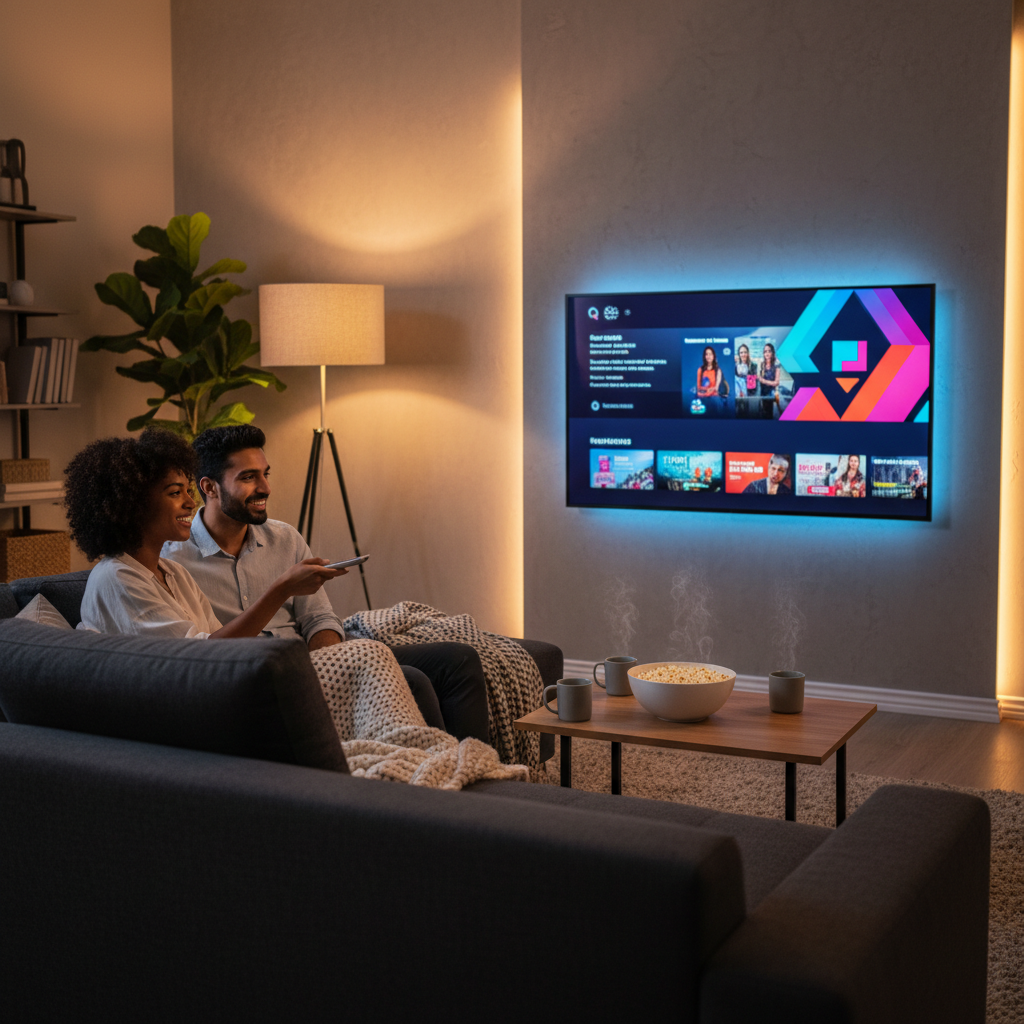
Getting IPTV on Roku TV is absolutely doable, but it takes a slightly different path than on a Firestick or Android box. Roku locks down its app store, so you won’t find a traditional IPTV player sitting there waiting for you. Instead, you’ll use a workaround that takes about ten minutes and works reliably once you know the steps.
This guide covers every stage: picking the right setup method, loading your IPTV player, and connecting your subscription so you’re watching live TV the same day. If you have a TCL Roku TV or any other Roku-powered set, the process is identical. For a broader comparison across devices, the complete IPTV device setup guide has everything side by side.
What Is IPTV and Why It Works on Roku TV
IPTV delivers live TV channels and on-demand video over your regular internet connection instead of a cable or satellite line. Per the ITU’s definition of IPTV, it’s multimedia content transported across IP-based networks — the same infrastructure your Roku TV already uses every day.
Roku processes all its content as internet data streams, so it handles IPTV traffic the same way it handles Netflix. Your subscription arrives as either an M3U playlist URL or Xtream Codes login — the two universal IPTV formats. Connecting your IPTV service with an M3U playlist or Xtream Codes is straightforward once you have the right app installed.
The one catch: Roku doesn’t allow sideloading apps the way a Firestick does. You’re limited to what’s in the Roku Channel Store, plus a couple of reliable workarounds covered below.
What You Need Before Setting Up IPTV on Roku TV
Before you touch any app or menu, get three things in order: a compatible Roku device, a solid internet connection, and a working IPTV subscription that gives you M3U or Xtream Codes credentials.
Any current Roku works — a Roku Express, Roku Ultra, TCL Roku TV, or any TV with Roku built in. Aim for at least 10 Mbps for HD streams and 25 Mbps for 4K. Wired Ethernet beats Wi-Fi every time for stable IPTV on Roku TV.
You’ll also need a provider that sends credentials immediately after signup. VoxiCast emails your M3U link and Xtream Codes within about two minutes, so you can paste them straight into whichever player you install. If you hit buffering after your first activation, check out how to fix IPTV buffering on Roku before adjusting anything else.
Best IPTV Player Apps Compatible with Roku TV
Roku’s closed app store means you can’t install just any IPTV player, but a handful of solid options do make it through. These apps accept your M3U link or Xtream Codes directly, so entering your VoxiCast credentials takes about a minute.
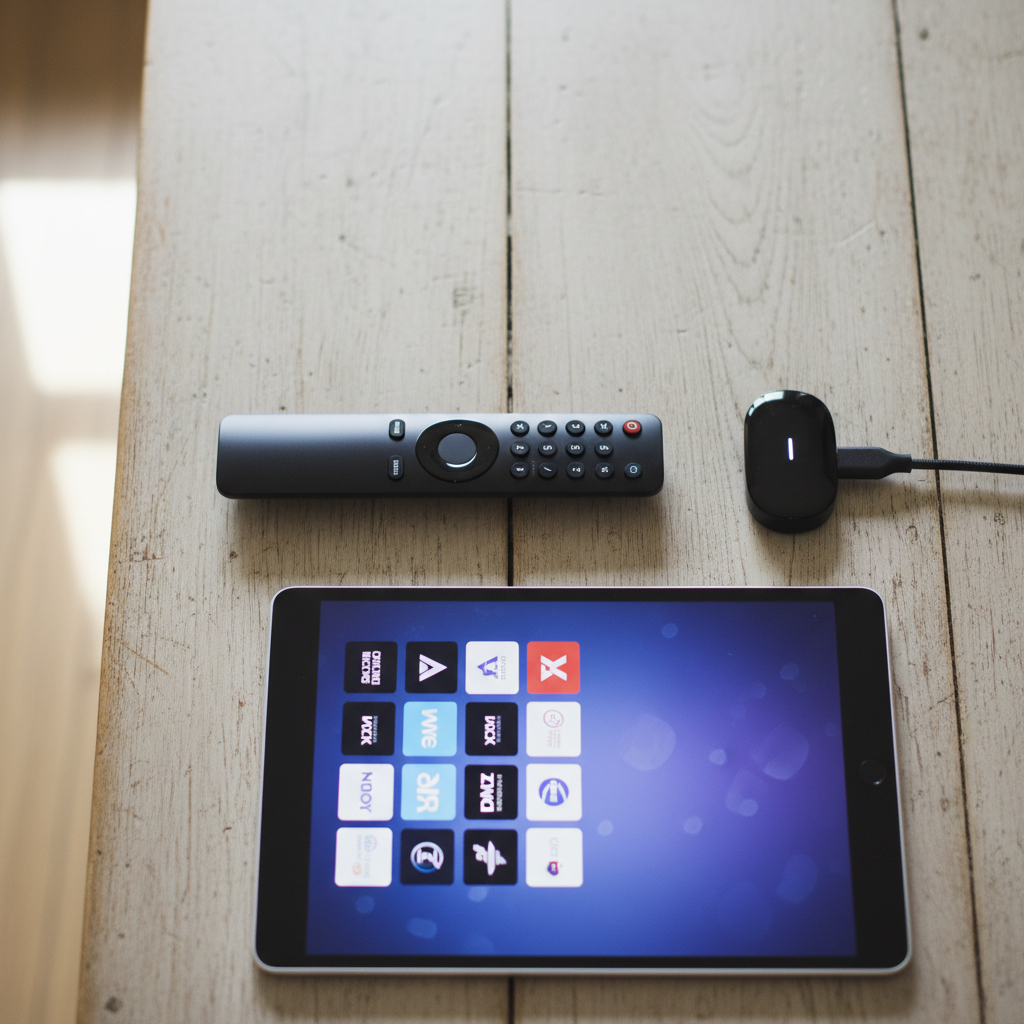
The Roku Channel Store listing for IPTV Smarters Player is one of the first places to check. It supports EPG guides, 4K playback, and organized channel lists right out of the box. For a fuller comparison, the best IPTV player apps to use in 2026 breaks down how Smarters stacks up against the other top options.
Look for apps that offer EPG support, stable 4K streams, and a clean interface your whole household can navigate. Those three things separate a frustrating experience from one that genuinely replaces cable.
Method 1 — Using a Roku-Compatible IPTV Player App (Recommended)
The easiest way to get IPTV on Roku TV is to install an M3U-compatible player from the Roku Channel Store, then paste in your VoxiCast credentials. No sideloading, no developer mode — just a few taps.
Install the App
From your Roku home screen, press the home button and open the Channel Store. Search for an IPTV player — IPTV Smarters is a strong choice. Select it and hit Add Channel.
Enter Your VoxiCast Credentials
Launch the app and choose Xtream Codes login. Enter the server URL, username, and password from your VoxiCast email, that arrives about two minutes after signup. The app connects and pulls your full channel list automatically.
Let the EPG Load
VoxiCast’s guide data loads on its own. With 40,000+ live channels mapped to it, you’ll see show names, times, and descriptions right away, no manual setup needed.
Organize Your Channels
Mark your most-watched channels as favorites so you’re not scrolling through thousands of options every time. Most players let you build a custom favorites list in under a minute.
Method 2, Screen Mirroring IPTV to Roku TV
Screen mirroring lets you run any IPTV app on your phone or PC and display it on your Roku TV, no app store required. It’s the go-to workaround when your preferred player isn’t available on Roku directly.
How to set it up
On your Roku, go to Settings > System > Screen Mirroring and set the mode to Always Allow or Prompt. Check Roku’s official screen mirroring instructions for device-specific steps before you start. Then open your VoxiCast-compatible app, IPTV Smarters or XCIPTV work great, on your Android phone or Windows PC and cast to the Roku from your device’s built-in mirroring menu.
What to expect
The big win is flexibility: any IPTV app works, full stop. The trade-offs are mild battery drain on your phone and a slight lag compared to a native app. If the connection drops or stutters, confirm both devices are on the same Wi-Fi network, update your Roku firmware, and move the router closer to reduce interference.
Method 3, Using an External Streaming Device with Your Roku TV
If you want full IPTV app freedom on your TCL Roku TV, plug a Firestick, Android TV box, or Nvidia Shield into any open HDMI port. Your Roku TV becomes the display; the external device does all the work.
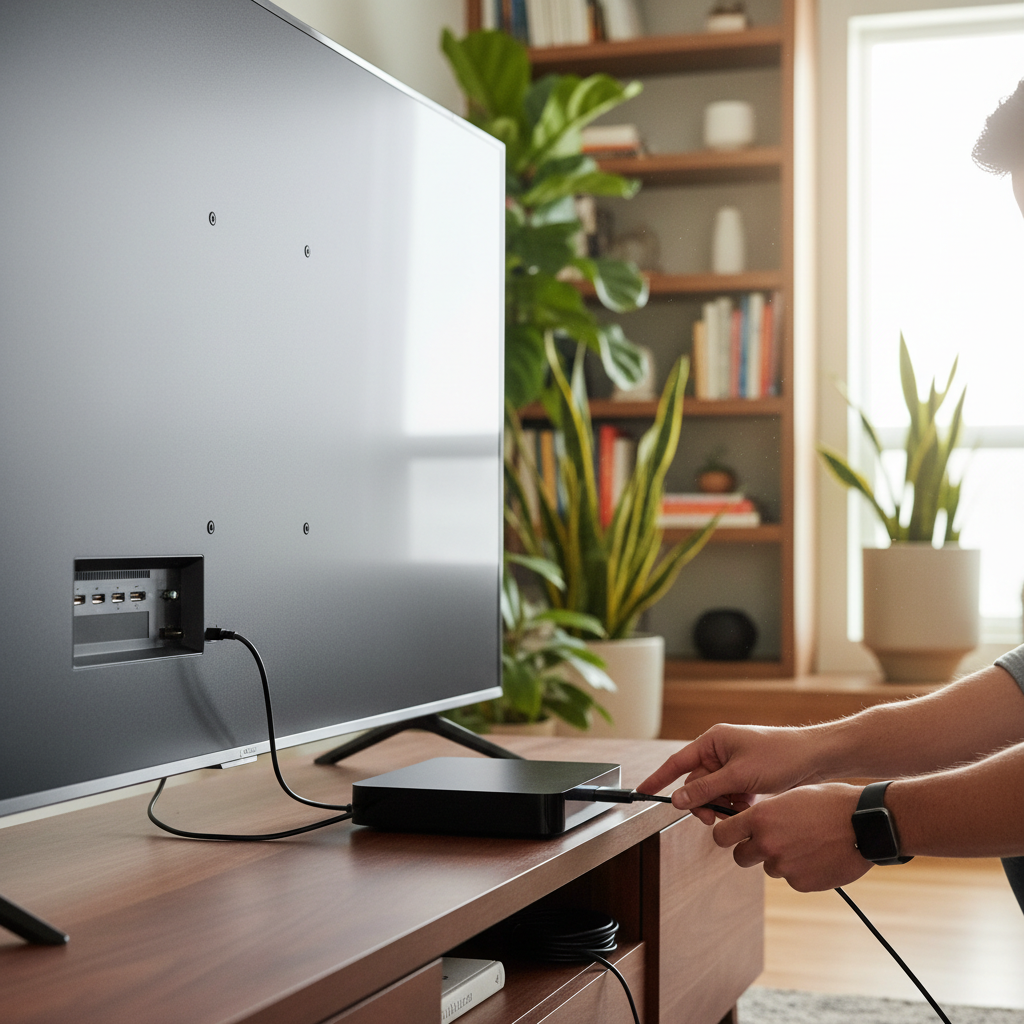
On that external device, install a capable IPTV player, IPTV Smarters is a solid pick. Enter your VoxiCast M3U link or Xtream Codes, and your full channel lineup loads instantly. Then switch your Roku TV’s input to that HDMI source and you’re watching.
This is the cleanest way to get true IPTV on Roku TV hardware without any workarounds, and VoxiCast supports all three of those devices natively.
Why VoxiCast Is the Right IPTV Subscription for Roku TV Users
VoxiCast pairs well with Roku TV because your M3U link and Xtream Codes land in your inbox within about two minutes of signing up, no waiting, no contracts. You plug those credentials straight into your player and you’re live.
The channel lineup covers 40,000+ live channels with a full EPG guide, 54,000+ VOD movies and series, and picture quality from SD all the way to 4K. Dedicated sports servers handle Premier League, NFL, NBA, UFC, and PPV events with zero blackouts, a real step up for live sports fans. Antifreeze technology and 99.9% uptime keep streams smooth, and 24/7 support is there if anything goes sideways.
Plans start at $24.99 for a single connection. A 24-hour free trial lets you test everything on your actual Roku setup before spending a dollar, and a 10-day money-back guarantee backs every purchase. Check the VoxiCast subscription plans and pricing page for the full breakdown.
Optimizing Your IPTV Streaming Experience on Roku TV
A few quick tweaks make a real difference between choppy streams and a rock-solid picture. Start with your Roku display settings and work outward from there.

Set your Roku’s resolution to match your stream quality. If you’re watching 4K on a TCL Roku TV, plug in a USB-to-Ethernet adapter and go wired. Wi-Fi handles HD fine, but Ethernet kills buffering dead for 4K content.
Inside your IPTV player, pick the VoxiCast server region closest to you, lower latency means fewer freezes. If your account dashboard shows an antifreezing toggle, turn it on. It quietly re-buffers in the background so you never see a spinning wheel mid-match.
Clear your Roku’s cache every few weeks: Settings → System → Advanced system settings → Factory reset (just the cache, not your data). If EPG data looks stale while running IPTV on Roku TV, restart the player app alone rather than rebooting the whole device, it refreshes the guide in seconds.
Is IPTV Legal and Safe to Use on Roku TV?
IPTV technology is completely legal. What matters is the service behind it, specifically, whether it has the rights to broadcast the content it delivers.
Paid, licensed IPTV subscriptions are a legitimate alternative to cable, the same way Hulu Live or YouTube TV are. VoxiCast is a premium paid service, not pirated, not free, not grey-market. You’re paying for a real subscription with real support behind it.
Unverified free apps are a different story. FTC guidance on pirated streaming apps warns that these can expose your device to malware. Stick to reputable paid providers and you sidestep that risk entirely. Using a VPN while streaming is optional, but it adds a useful layer of privacy on shared networks.
Frequently Asked Questions
Does Roku TV have an IPTV app?
Yes, the Roku Channel Store includes several M3U-compatible IPTV player apps you can install directly. Screen mirroring from a phone and connecting an external device via HDMI are also solid options. Pair any of these with a VoxiCast subscription and you get tens of thousands of live channels with full EPG support right on your Roku screen.
How do I set up IPTV on Roku TV?
You have three solid options. Install an IPTV player from the Roku Channel Store and enter your VoxiCast credentials. Mirror your phone or PC screen to Roku and run an IPTV app there. Or plug a Firestick or Android TV box into your Roku TV’s HDMI port. Start with the Channel Store app method, it’s the quickest and cleanest setup.
Which IPTV is free on Roku?
Truly free IPTV services exist, but they offer limited, ad-heavy content with no reliable live sports or international channels. For the real experience, a paid subscription is what you need. VoxiCast’s 24-hour free trial is the smartest way to test full premium IPTV on Roku, tens of thousands of channels, live sports, and a massive VOD library, all before you commit to a plan.
Is IPTV legal in the United States?
IPTV as a technology is completely legal in the US. What matters is whether the service operates as a legitimate paid subscription. VoxiCast is a paid IPTV service, which puts it in the same category as any other subscription streaming platform. Cord-cutters and sports fans can use it with confidence.
Can I use VoxiCast on my TCL Roku TV?
Absolutely. Your M3U link and Xtream Codes arrive by email within about two minutes of signing up. Those credentials plug straight into IPTV player apps on TCL Roku TV, or you can use screen mirroring or an external device. Grab the 24-hour free trial to test everything on your specific TCL model before spending a dollar.
What internet speed do I need for IPTV on Roku TV?
Aim for at least 10 Mbps for solid HD streams and 25 Mbps or more for stable 4K playback. VoxiCast’s antifreeze technology helps keep streams smooth even when your connection dips briefly. For best results, run an Ethernet cable from your router to your Roku TV or external device rather than relying on Wi-Fi.
What makes VoxiCast better than other IPTV options for Roku?
It’s the combination that’s hard to beat: 40,000+ live channels with EPG, 54,000+ VOD titles, dedicated sports servers covering NFL, Premier League, UFC, and PPV events with zero blackouts, and picture quality from SD to 4K. Add instant credential delivery, 24/7 support, a 24-hour free trial, and plans starting at $24.99 with no contracts, and it’s a straightforward choice for Roku TV users.
Final Thoughts
Getting IPTV on Roku TV takes one extra step compared to other devices, but it’s absolutely doable. Install the right player app, mirror from your phone, or plug in an external stick, any of the three methods gets you live sports, international channels, and on-demand content on your big screen in minutes.
VoxiCast is the service worth pairing with that setup. Tens of thousands of live channels, dedicated sports servers with zero blackouts, and plans that won’t break your budget. You can try VoxiCast free for 24 hours before committing and see exactly how it performs on your Roku TV before spending a cent.